Create Institution Landing Pages: Template Selection
An institution can create a customized, branded Transferology® landing page to help promote the college or university to prospective students. When navigating to Transferology through the institution's referral link or badge, students will see the customized page (assuming it is published) instead of the CollegeSource-branded homepage. This article, within Create Institution Landing Pages: An Overview Guide (see Related Articles), explains how users can choose from two templates when creating a landing page.
In this article:
Original Landing Page Template
Institutions can continue to use the Original Landing Page Template. To select the template:
- Go to the School Profile menu.
- Select Promote Your School.
- Select the Institution Template tab.
- Users will be presented with a message asking for affirmation that the landing page's content is not the responsibility of CollegeSource. Images, color, and text added to this page are the responsibility of the institution, state, or system to which the page belongs.
- Mark the checkbox in front of I agree and select Agree to continue.
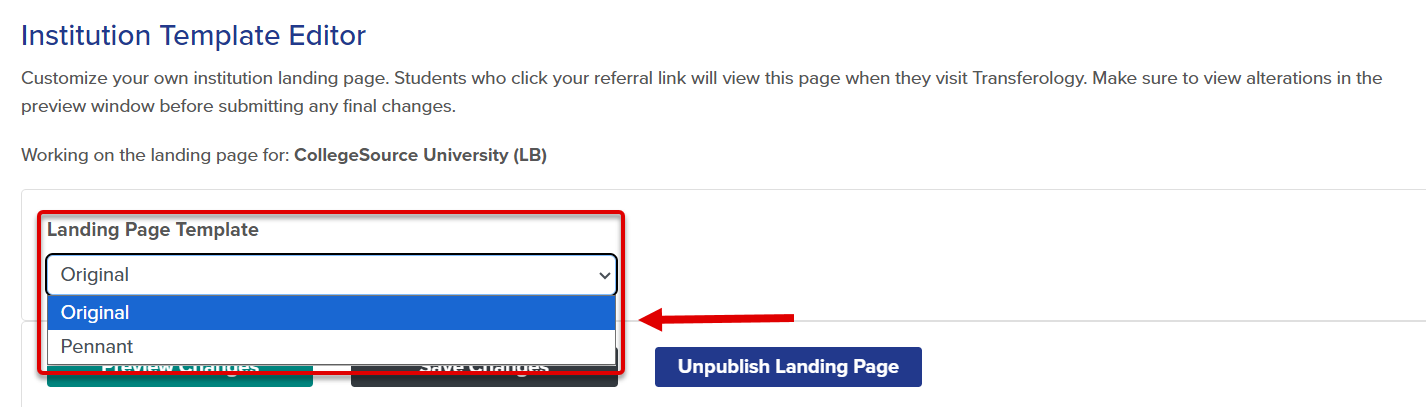
- Select Original in the Landing Page Template dropdown.
- Fill out the fields in each section using the below articles as a guide:
- Create Institution Landing Pages: Color Selection
- Create Institution Landing Pages: Information
- Create Institution Landing Pages: Image Uploads
- Create Institution Landing Pages: SEO Optimization
- The page description and keywords within SEO Optimization appear blank but are prepopulated by CollegeSource by default. School Admins only need to update these fields if the institution wishes to supply different or additional information.
Additional Original Landing Page Information
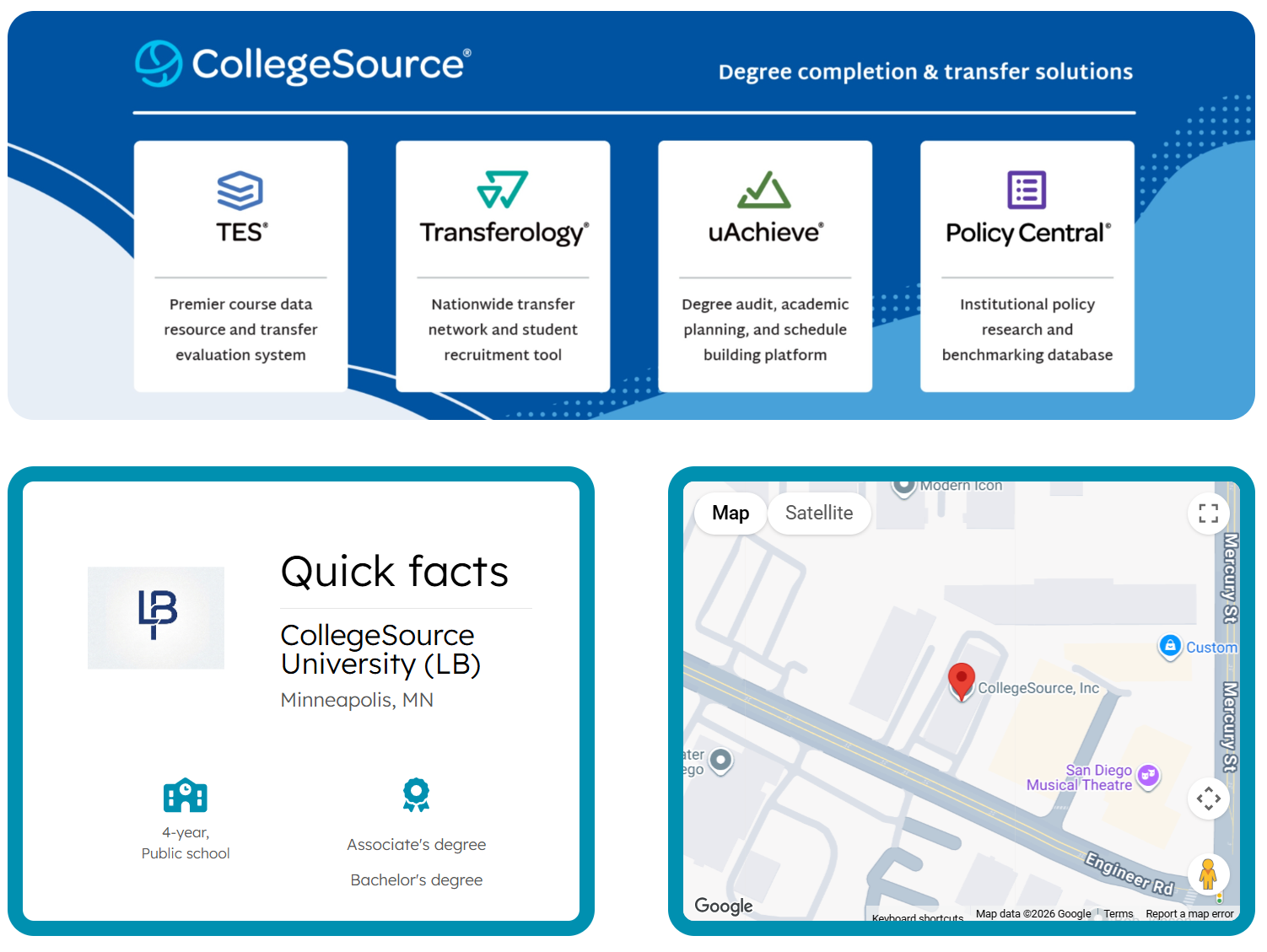
In addition to the customizations discussed within the supporting articles, the following three sections will also appear on the institution’s landing page:
- The banner image within the School Profile.
- An image of the institution logo, along with a summary of quick facts from the School Profile.
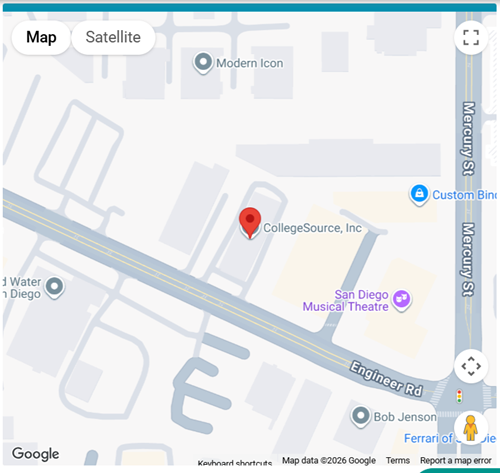
- A map of the school location.
As information from the School Profile and the Locations tab are updated, these areas will be updated accordingly.
See Create Institutional Landing Pages: Sample Landing Page in Related Articles for more information.
Pennant Landing Page Template
Institutions can select the Pennant Landing Page Template instead of the Original Landing Page Template. The Pennant Landing Page Template option provides different visual aspects to the landing page, as well as the option to include a school mascot name. To select the template:
- Go to the School Profile menu.
- Select Promote Your School.
- Select the Institution Template tab.
- Users will be presented with a message asking for affirmation that the landing page's content is not the responsibility of CollegeSource. Images, color, and text added to this page are the responsibility of the institution, state, or system to which the page belongs.
- Mark the checkbox in front of I agree and select Agree to continue.
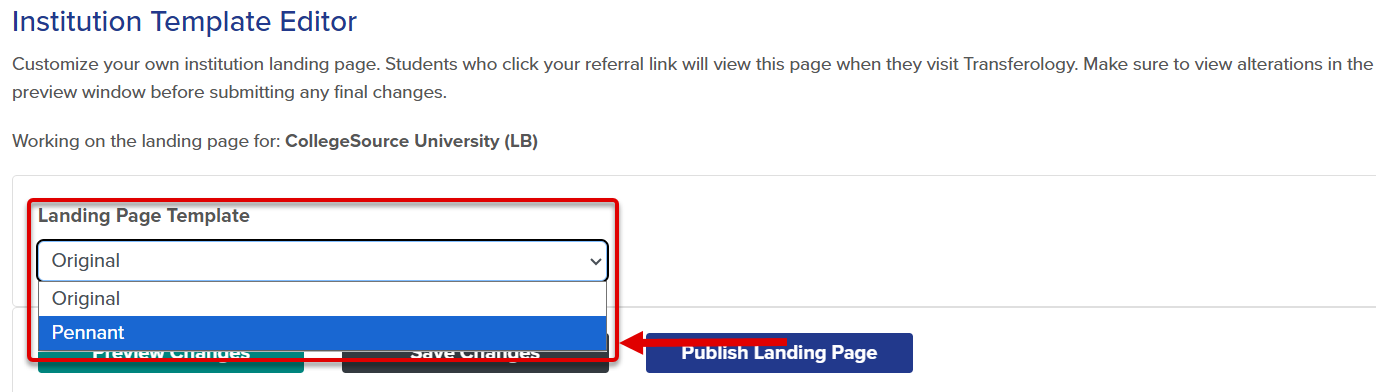
- Select Pennant in the Landing Page Template dropdown.
- Fill out the fields in each section using the below articles as a guide:
- Create Institution Landing Pages: Color Selection
- Create Institution Landing Pages: Information
- Create Institution Landing Pages: Image Uploads
- Create Institution Landing Pages: SEO Optimization
- The page description and keywords within SEO Optimization appear blank but are prepopulated by CollegeSource by default. School Admins only need to update these fields if the institution wishes to supply different or additional information.
Additional Pennant Landing Page Information
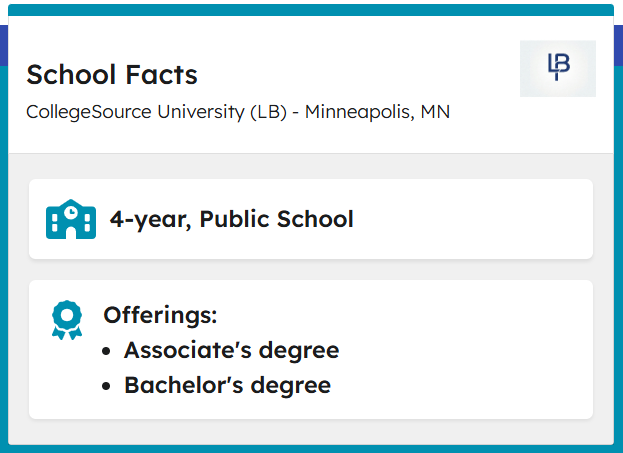
In addition to the customizations discussed within the supporting articles, the following three sections will also appear on the institution’s landing page:
- School Mascot name

- An image of the institution logo, along with a summary of school facts from the School Profile.
- A map of the school location.
As information from the School Profile and the Locations tab are updated, these areas will be updated accordingly.
See Create Institutional Landing Pages: Sample Landing Page in Related Articles for more information.
Template Comparison
The templates available for the institution landing page are mostly similar, with the main difference in the visual display of information. The following chart defines the differences between the two options.
| Heading | Field Name/Description | Original Template | Pennant Template |
| Color Selection | Text Color hex code value. | Used | Used |
|
|
Primary Background Color hex code value. | Used | Used |
|
|
Primary Foreground Color hex code value. | Used | Used |
|
|
Secondary Color hex code value. | Used | Used |
|
|
Tertiary Color hex code value. | Used | Not Used |
|
|
Transferology Logo Color value. The Transferology logo can display in white or black on the menu bar. | Set in Institution Template, visible only in the student application and not the landing page. | Set in Institution Template, visible only in the student application and not the landing page. |
| Information |
Description A description of the institutions within the state/system. 250 characters or less. |
Used | Used |
|
|
School Mascot Name of an institution's school mascot (example, Bear). Displays as "I want to be a Bear!". |
Not Used | Used |
|
|
Custom URL A description of the institutions within the state/system. 250 characters or less. |
Used | Used |
|
|
Credit Award Types Options: Standardized Exams, Military Learning Experiences, Life Learning Experiences. |
Used | Used |
|
|
Information Links Options to provide links within the landing page for the following: Transfer Information, Admissions Application, Admission Information, Financial Aid Information, Registration Information |
Used | Used |
| Image Uploads |
Logo Image Appears at the top of the Transferology® landing page. For best results, use an image of 740x110 pixels. The image must be a JPG, JPEG, or PNG file no more than 1MB in size. Logo Image Alternate Text 120 characters or less. |
Used | Used |
|
|
Header Image For best results, use an image of 1200x1100 pixels. The image must be a JPG, JPEG, or PNG file no more than 1MB in size. Header Image Alternate Text 120 characters or less. |
Used | Used |
|
|
Thumbnail Image For best results, use a 48x48-pixel image. The image must be a JPG, JPEG, or PNG file no more than 1MB in size. Thumbnail Image Alternate Text 120 characters or less. |
Used | Used |
| SEO Optimization |
SEO Page Description 155 characters or less. |
Used | Used |
|
|
SEO Page Keywords 250 characters or less. |
Used | Used |
|
|
|
|
|
Match Results Display
In addition to choosing a landing page template, institutions can further customize Transferology for prospective students by displaying only their institution's match results within the student application. With a published institution landing page and restricting the display of match results, an institution's branding (as defined within the Institution Template tab) will appear in the Will My Courses Transfer? section of Transferology.
Note that students must access Transferology through the published landing page for the institution's branding to display.
To configure:
- Go to the School Profile menu.
- Select Promote Your School.
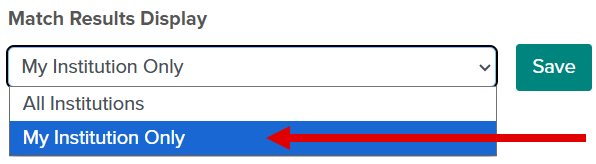
- Select My Institution Only in the Match Results Display dropdown and Save. The default setting is All Institutions.
Transferology Menu View with Published Landing Page
The institution's branding displays in the top menu bar of the Will My Courses Transfer? section of Transferology.

Transferology Menu View without Published Landing Page
The default Transferology color displays in the top menu bar of the Will My Courses Transfer? section of Transferology.