
Sort and Filter Transfer Match Results
Within Transferology® Lab, college staff can view how courses, standardized exams, and military credits may transfer to or earn credit at participating colleges and universities. When students request information from a school, individuals with the appropriate user roles can view the coursework entered by the students and view Match results through Recruit Students and Advise Students. Similarly, all users of Transferology Lab (regardless of role) can create Transfer and Collaborative Transfer Bundles and view Match results.
Sometimes, the list of transfer schools within these results is extensive. This article will detail how to use Sort and Filter options to narrow Match results to specific needs/preferences.
In this article:
This article presumes that the reader has already navigated to the Schools Found page and is ready to view Match results. See the Recruit and Advise Students: Student Profile and Course Bundles: View Transfer Bundle Matches (under Related Articles) for how to locate this page.
In the example below, 197 schools are reported to have evaluated at least one of the courses, standardized exams, or military credits entered into Transferology®. The Lab user may wish to narrow down these results using the Sort and Filter options highlighted to find specific schools or those that meet certain criteria.

Filter Options
Filter Field
The Filter field is above the Match results table. Type in the name of the school or city to help locate an institution.

Looking for a particular school?
To view Match results for a specific institution:
- Select the Looking for a particular school? hyperlink above the search bar.

- Select a state from the drop-down.
- Select a school name from the drop-down.
- Select View Matches.
- The institution's results page will appear.
- See Course Bundles: View Transfer Bundle Matches under Related Articles.
- If the institution selected does not provide data to Transferology, a message will appear noting this.
- The institution's results page will appear.
Tip: Navigate the State and Select a school drop-down menus more quickly by selecting the first letter in each name with the keyboard.
Sort/Filter Box
The following options are available within the Sort/Filter Box:
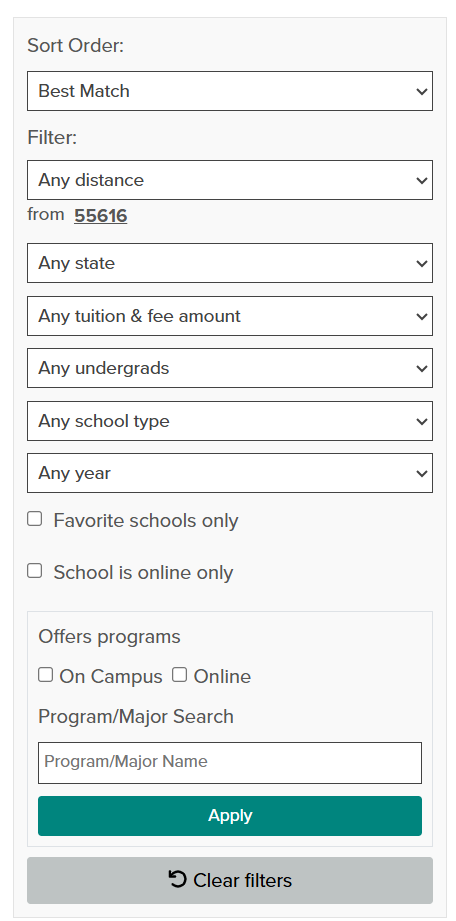
All Sort and Filter options will automatically apply when selected, with the exception of selections within the Offers programs and Program/Major Search fields. Users must select Apply to display filtered results in these areas.
Select Clear filters to remove the applied filter or any selected filter choices.
Sort Order
Sort rearranges all of the Matches to display in the order the user dictates from the drop-down.
Choices are:
- Best Match (default)
- Distance increasing
- Distance decreasing
- Population increasing
- Population decreasing
- Tuition & Fees increasing
- Tuition & Fees decreasing
Filter
Filter displays only those Matches that fit within the parameters selected by the user from the drop-down.
| Category | Options/Instructions |
| Distance |
Select from the drop-down:
Select the hyperlinked Zip Code to update the user's location. |
| State |
Select any of the United States from the drop-down. Any state is selected by default. |
| Tuition & Fees |
Select from the drop-down:
|
| Population |
Select from the drop-down:
|
| School Type |
Select from the drop-down:
|
| Any Year |
Select from the drop-down:
|
| Favorite Schools Only |
Enable the Favorite schools only checkbox to limit results to schools designated as favorite schools. Favorite systems will not be included in the results. By default, this box is unchecked. |
| Online Schools |
Enable the School is online only checkbox to limit results to schools designated as online only. By default, this box is unchecked. |
| Offers programs |
Select schools to display based upon delivery method. Enable the On Campus checkbox to limit results to schools offering programs on campus. Enable the Online checkbox to limit results to schools offering programs online. By default, both boxes are unchecked. |
| Program/Major Search |
Select schools to display based upon the name of a program or major. Enter the name into the Program/Major Name search field. |
|
|
|