
Update My Profile and Password
This article outlines the steps for updating Transferology® Lab user profiles, including modifying biographical data and passwords.
In this article:
Managing user profile information, including password reset, is accomplished on the My Profile page in the Transferology Lab. To access this page:
- Go to the user login.
- Select My Profile

Two tabs will appear:
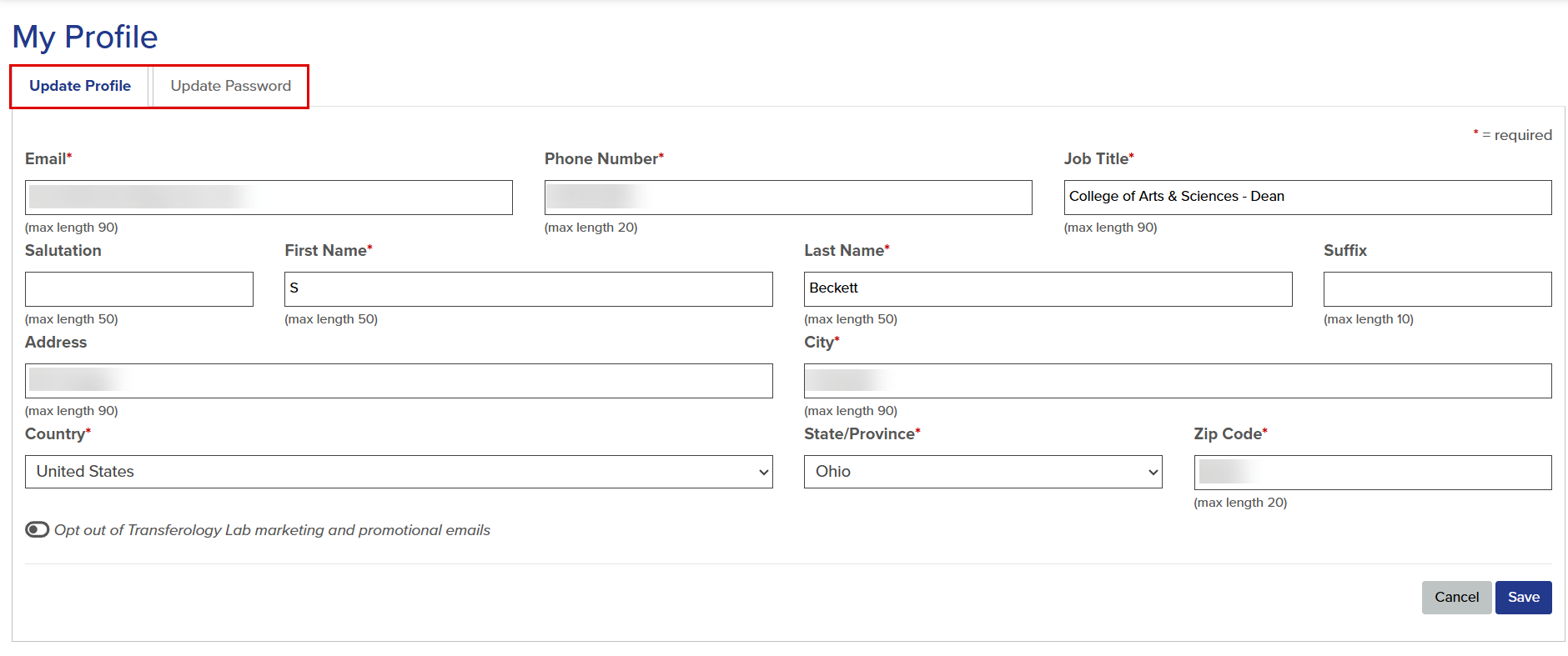
Select the appropriate tab and follow the instructions below.
Update Profile
To update biographical information:
1. Edit the content in the fields presented (see above).
- All fields are required except for Salutation, Suffix, and Address.
- For an overview/explanation of all fields, see "Create a User" within Create Transferology Lab User Accounts and Assign Roles (under Related Articles).
- Select Save.
A confirmation will appear on the screen, noting that the user's data has been saved.
All fields - including Email - can be updated. Changing the user's email address will not disrupt reporting in the Transferology® Lab.
Note that the user's email address must belong to the college, university, or organization's email domain (or subdomain).
Update Password
To update the password:
- Review the password guidelines.
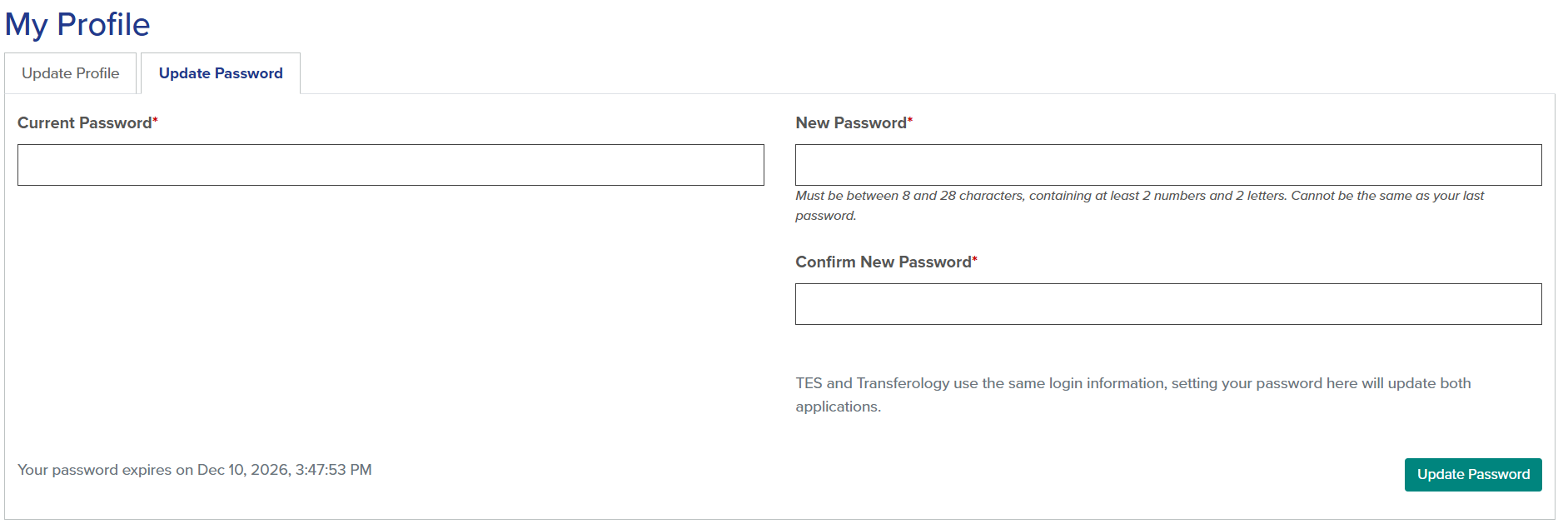
- The password must be new, not the same as your previous password.
- The password must be a minimum of eight (8) and no more than twenty-eight (28) characters.
- The password must contain at least two letter characters and two number characters.
Transferology will support the copying and pasting of passwords and entering of passwords via a password management system. The password will appear hidden when entered.
Users should be aware that TES® and the Transferology® Lab use the same login information. Changing the user's password in the Transferology Lab will update it in both applications.
- Enter the Current Password into the field noted.
- Enter the New Password into the field noted.
- Re-enter the new password in the Confirm New Password box.
- Select Update Password.
A message will appear confirming the password has changed.
Note that each time a password is reset, the 365 days from which the password expires starts again.